
-
 October 30, 2026
-
0 Comments
-
By
satyaitsolution


 By
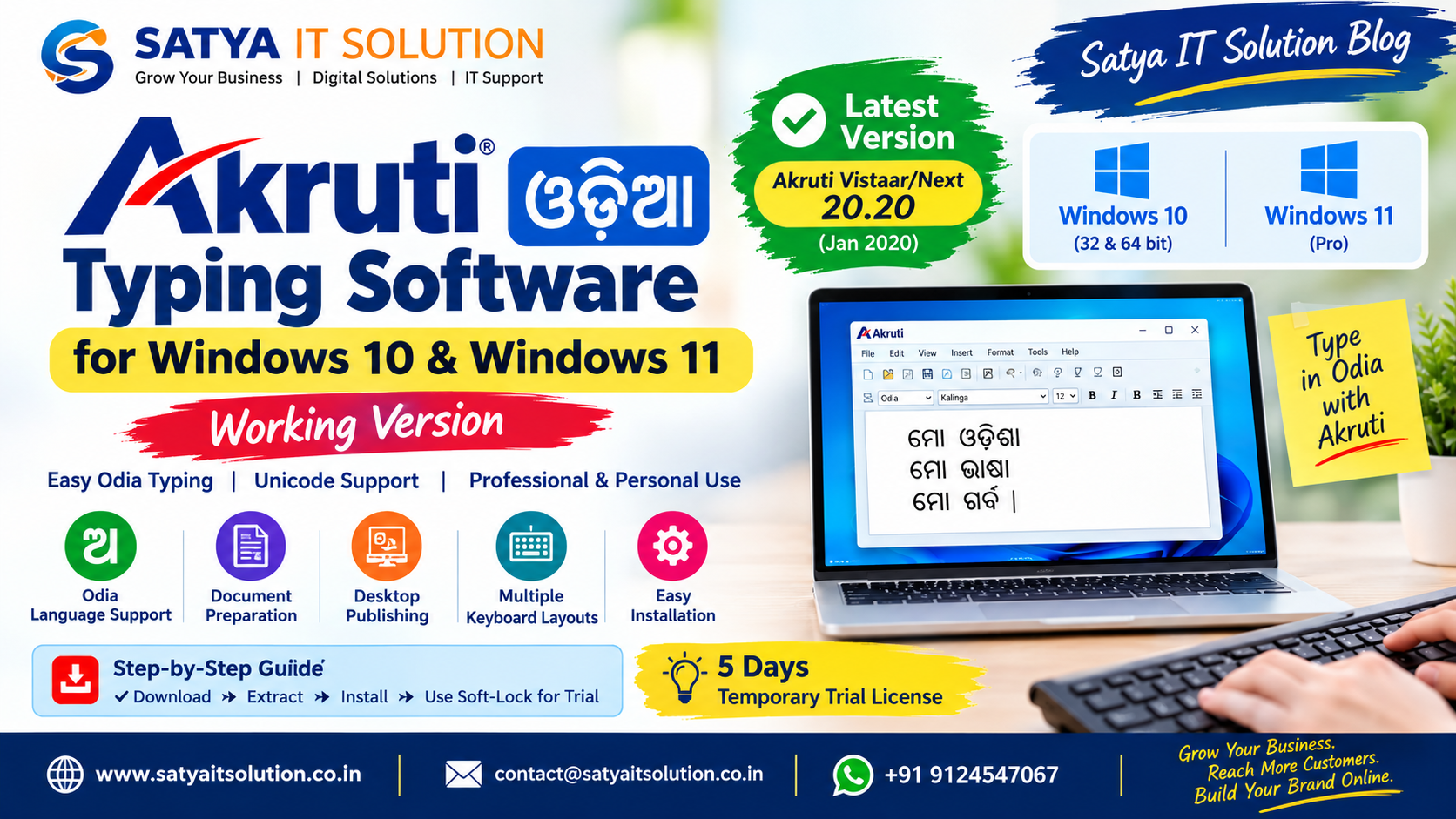
By Akruti Odia Typing Software: Working Version for Windows 10 & Windows 11
Are you looking for Akruti Odia typing software that works on Windows 10 and Windows 11? Satya IT Solution provides information about Akruti Odia typing software, installation requirements, Windows compatibility, and troubleshooting to help users choose the right version for their computers.
Akruti is an Indian-language software package used for Odia typing, document preparation, and desktop publishing. Depending on the edition, it supports Unicode and non-Unicode fonts and can be used with applications such as Microsoft Word and professional DTP software.
In this guide, we explain the available version information, compatibility considerations, installation process, and important tips for users who want to type in Odia on Windows computers.
Which Akruti Odia Software Version Works on Windows 10 and Windows 11?
According to the manufacturer’s official website, Akruti Vistaar/Next version 20.20, released in January 2020, is the version identified as compatible with 32-bit and 64-bit Windows, including Windows 10 and Windows 11 Pro.
The manufacturer lists Oriya (Odia) among the supported Indian-language scripts.
However, compatibility depends on the Akruti edition, Windows edition, application, and typing requirements. Windows 11 Home compatibility is not explicitly confirmed on the manufacturer’s cited product information page.
Before installing the software, verify that the version supports your Windows configuration.
Key Features of Akruti Odia Typing Software
Akruti offers Indian-language typing features for personal, office, and professional use, depending on the selected edition.
Key features include:
- Odia Language Support: Type Odia text using supported Akruti language and keyboard configurations.
- Unicode Support: Work with Unicode text in compatible applications using supported Unicode features.
- Microsoft Office Compatibility: Prepare documents and correspondence in supported office applications.
- Desktop Publishing: Professional editions offer features for compatible DTP applications.
- Multiple Keyboard Layouts: Choose from the layouts available in your installed edition.
- Font Utilities: Certain editions provide font conversion and other language-processing utilities.
- Windows Compatibility: Select an edition appropriate for your Windows version and computer architecture.
Feature availability varies by product edition.
How to Install Akruti Odia Software on Windows 10 and Windows 11
Follow these general steps to install Akruti Odia typing software.
Step 1: Obtain the Installation Package
Obtain the appropriate Akruti installer from the manufacturer or an authorized provider. Verify the software edition, version, and licensing requirements before downloading.
Step 2: Extract the ZIP File
If your installation package is supplied as a ZIP file, save it to your computer and extract its contents into a suitable folder.
Step 3: Run the Setup File
Open the extracted folder and run the appropriate setup file. Follow the instructions displayed by the installer.
Only run installation files from sources you trust.
Step 4: Complete the Installation
Allow the installer to finish. Follow any instructions concerning fonts, language settings, or licensing.
Step 5: Open Akruti and Select Odia
Launch the Akruti application and select the appropriate script and keyboard layout for Odia typing.
Choose the font or Unicode mode appropriate to your task and the software edition.
Step 6: Test Odia Typing
Open a compatible application and test typing a few Odia words. Confirm that the characters display correctly and that the text can be saved and reopened as expected.
Akruti Odia Software: Windows 10 vs Windows 11
| Feature | Windows 10 | Windows 11 |
|---|---|---|
| Akruti Vistaar/Next 20.20 | Listed as compatible by the manufacturer | Windows 11 Pro listed as compatible |
| 32-bit and 64-bit support | Listed | Listed for the supported configuration |
| Odia script | Supported in the relevant editions | Supported in the relevant editions |
| Unicode typing | Depends on edition and configuration | Depends on edition and configuration |
| Older Akruti 7.0 editions | Compatibility varies | Compatibility must be verified |
| Windows 11 Home | Not applicable | Not explicitly confirmed on the cited manufacturer page |
Important: These details are based on the manufacturer’s published product information. They do not guarantee that every Akruti edition will work on every computer or application.
How to Fix Akruti Odia Typing Problems
If Akruti is installed but Odia typing is not working correctly, try the following checks.
1. Check the Language and Keyboard Layout
Open the Akruti Engine and verify that the correct script and keyboard layout are selected.
2. Verify the Font Settings
Use the font or Unicode configuration appropriate to your software edition and document. An incompatible font setting may cause text to display incorrectly.
3. Check the Application
Test typing in another compatible application. If the problem occurs in only one program, check the application-specific settings.
4. Verify Software Activation
Confirm that the software is correctly licensed and activated. Some editions require a hardware security dongle.
5. Confirm Windows Compatibility
Check your installed Akruti version and Windows edition. If you are using an older version, contact the software provider to confirm compatibility or available upgrade options.
6. Contact Technical Support
If the problem continues, record your Akruti version, Windows edition, and the application in which the issue occurs. Share these details with the authorized software provider.
Avoid unverified activation tools or instructions that require you to disable your computer’s security protection.
Where Can You Get Akruti Odia Software?
For official product information, available editions, licensing details, and compatibility requirements, consult the Akruti manufacturer’s website.
Users who need help selecting an edition for Odia typing should verify whether they require Unicode typing, legacy Akruti fonts, or professional desktop publishing features before purchasing.
For additional information, visit the Akruti software pages on Satya IT Solution.
Website: https://www.satyaitsolution.co.in/
Frequently Asked Questions
1. Which Akruti version is listed for Windows 11?
The manufacturer identifies Akruti Vistaar/Next version 20.20, released in January 2020, as compatible with Windows 11 Pro. Confirm current availability and compatibility directly with the manufacturer.
2. Does Akruti support Odia typing?
Yes. The manufacturer lists Oriya (Odia) among the supported scripts. Availability depends on the selected product edition.
3. Does Akruti 7.0 work on Windows 11?
Windows 11 compatibility for Akruti 7.0 is not confirmed by the cited manufacturer information. Test only with a legitimate installation and consult the software provider.
4. Can I use Akruti Odia in Microsoft Word?
Akruti editions support language work in compatible office applications. The exact typing method and font requirements depend on the installed edition and configuration.
5. What is the difference between Unicode and non-Unicode Odia typing?
Unicode text is designed for interoperability across compatible applications and systems. Non-Unicode workflows may rely on specific legacy fonts and can require conversion when sharing documents with other systems.
6. Is Akruti software free?
Akruti editions have their own licensing terms. Check the manufacturer’s current pricing and licensing information before downloading or using the software.
Conclusion
Akruti remains an option for users who need Odia typing and Indian-language desktop publishing capabilities. Choosing the right edition is essential for reliable performance on Windows 10 and Windows 11.
The manufacturer identifies Akruti Vistaar/Next 20.20 as compatible with Windows 11 Pro and lists Odia among its supported scripts. Always verify your specific Windows edition, software version, and licensing requirements before installation.
For more software guides, computer support information, and digital solutions, follow Satya IT Solution.
SATYA IT SOLUTION
Website: www.satyaitsolution.co.in
Email: [email protected]
Phone/WhatsApp: +91 9124547067
Disclaimer: Akruti is third-party software. Its trademarks, licensing, and product rights belong to their respective owners. Compatibility and feature availability depend on the software edition and system configuration.
Akruti Odia Typing Software: Working Version for Windows 10 & Windows 11
Are you looking for Akruti Odia typing software that works on Windows 10 and Windows 11? Satya IT Solution provides information about Akruti Odia typing software, installation requirements, Windows compatibility, and troubleshooting to help users choose the right version for their computers.
Akruti is an Indian-language software package used for Odia typing, document preparation, and desktop publishing. Depending on the edition, it supports Unicode and non-Unicode fonts and can be used with applications such as Microsoft Word and professional DTP software.
In this guide, we explain the available version information, compatibility considerations, installation process, and important tips for users who want to type in Odia on Windows computers.
Which Akruti Odia Software Version Works on Windows 10 and Windows 11?
According to the manufacturer’s official website, Akruti Vistaar/Next version 20.20, released in January 2020, is the version identified as compatible with 32-bit and 64-bit Windows, including Windows 10 and Windows 11 Pro.
The manufacturer lists Oriya (Odia) among the supported Indian-language scripts.
However, compatibility depends on the Akruti edition, Windows edition, application, and typing requirements. Windows 11 Home compatibility is not explicitly confirmed on the manufacturer’s cited product information page.
Before installing the software, verify that the version supports your Windows configuration.
Key Features of Akruti Odia Typing Software
Akruti offers Indian-language typing features for personal, office, and professional use, depending on the selected edition.
Key features include:
- Odia Language Support: Type Odia text using supported Akruti language and keyboard configurations.
- Unicode Support: Work with Unicode text in compatible applications using supported Unicode features.
- Microsoft Office Compatibility: Prepare documents and correspondence in supported office applications.
- Desktop Publishing: Professional editions offer features for compatible DTP applications.
- Multiple Keyboard Layouts: Choose from the layouts available in your installed edition.
- Font Utilities: Certain editions provide font conversion and other language-processing utilities.
- Windows Compatibility: Select an edition appropriate for your Windows version and computer architecture.
Feature availability varies by product edition.
How to Install Akruti Odia Software on Windows 10 and Windows 11
Follow these general steps to install Akruti Odia typing software.
Step 1: Obtain the Installation Package
Obtain the appropriate Akruti installer from the manufacturer or an authorized provider. Verify the software edition, version, and licensing requirements before downloading.
Step 2: Extract the ZIP File
If your installation package is supplied as a ZIP file, save it to your computer and extract its contents into a suitable folder.
Step 3: Run the Setup File
Open the extracted folder and run the appropriate setup file. Follow the instructions displayed by the installer.
Only run installation files from sources you trust.
Step 4: Complete the Installation
Allow the installer to finish. Follow any instructions concerning fonts, language settings, or licensing.
Step 5: Open Akruti and Select Odia
Launch the Akruti application and select the appropriate script and keyboard layout for Odia typing.
Choose the font or Unicode mode appropriate to your task and the software edition.
Step 6: Test Odia Typing
Open a compatible application and test typing a few Odia words. Confirm that the characters display correctly and that the text can be saved and reopened as expected.
Akruti Odia Software: Windows 10 vs Windows 11
| Feature | Windows 10 | Windows 11 |
|---|---|---|
| Akruti Vistaar/Next 20.20 | Listed as compatible by the manufacturer | Windows 11 Pro listed as compatible |
| 32-bit and 64-bit support | Listed | Listed for the supported configuration |
| Odia script | Supported in the relevant editions | Supported in the relevant editions |
| Unicode typing | Depends on edition and configuration | Depends on edition and configuration |
| Older Akruti 7.0 editions | Compatibility varies | Compatibility must be verified |
| Windows 11 Home | Not applicable | Not explicitly confirmed on the cited manufacturer page |
Important: These details are based on the manufacturer’s published product information. They do not guarantee that every Akruti edition will work on every computer or application.
How to Fix Akruti Odia Typing Problems
If Akruti is installed but Odia typing is not working correctly, try the following checks.
1. Check the Language and Keyboard Layout
Open the Akruti Engine and verify that the correct script and keyboard layout are selected.
2. Verify the Font Settings
Use the font or Unicode configuration appropriate to your software edition and document. An incompatible font setting may cause text to display incorrectly.
3. Check the Application
Test typing in another compatible application. If the problem occurs in only one program, check the application-specific settings.
4. Verify Software Activation
Confirm that the software is correctly licensed and activated. Some editions require a hardware security dongle.
5. Confirm Windows Compatibility
Check your installed Akruti version and Windows edition. If you are using an older version, contact the software provider to confirm compatibility or available upgrade options.
6. Contact Technical Support
If the problem continues, record your Akruti version, Windows edition, and the application in which the issue occurs. Share these details with the authorized software provider.
Avoid unverified activation tools or instructions that require you to disable your computer’s security protection.
Where Can You Get Akruti Odia Software?
For official product information, available editions, licensing details, and compatibility requirements, consult the Akruti manufacturer’s website.
Users who need help selecting an edition for Odia typing should verify whether they require Unicode typing, legacy Akruti fonts, or professional desktop publishing features before purchasing.
For additional information, visit the Akruti software pages on Satya IT Solution.
Website: https://www.satyaitsolution.co.in/
Frequently Asked Questions
1. Which Akruti version is listed for Windows 11?
The manufacturer identifies Akruti Vistaar/Next version 20.20, released in January 2020, as compatible with Windows 11 Pro. Confirm current availability and compatibility directly with the manufacturer.
2. Does Akruti support Odia typing?
Yes. The manufacturer lists Oriya (Odia) among the supported scripts. Availability depends on the selected product edition.
3. Does Akruti 7.0 work on Windows 11?
Windows 11 compatibility for Akruti 7.0 is not confirmed by the cited manufacturer information. Test only with a legitimate installation and consult the software provider.
4. Can I use Akruti Odia in Microsoft Word?
Akruti editions support language work in compatible office applications. The exact typing method and font requirements depend on the installed edition and configuration.
5. What is the difference between Unicode and non-Unicode Odia typing?
Unicode text is designed for interoperability across compatible applications and systems. Non-Unicode workflows may rely on specific legacy fonts and can require conversion when sharing documents with other systems.
6. Is Akruti software free?
Akruti editions have their own licensing terms. Check the manufacturer’s current pricing and licensing information before downloading or using the software.
Conclusion
Akruti remains an option for users who need Odia typing and Indian-language desktop publishing capabilities. Choosing the right edition is essential for reliable performance on Windows 10 and Windows 11.
The manufacturer identifies Akruti Vistaar/Next 20.20 as compatible with Windows 11 Pro and lists Odia among its supported scripts. Always verify your specific Windows edition, software version, and licensing requirements before installation.
For more software guides, computer support information, and digital solutions, follow Satya IT Solution.
SATYA IT SOLUTION
Website: www.satyaitsolution.co.in
Email: [email protected]
Phone/WhatsApp: +91 9124547067
Disclaimer: Akruti is third-party software. Its trademarks, licensing, and product rights belong to their respective owners. Compatibility and feature availability depend on the software edition and system configuration.