
-
 October 30, 2026
-
0 Comments
-
By
satyaitsolution


 By
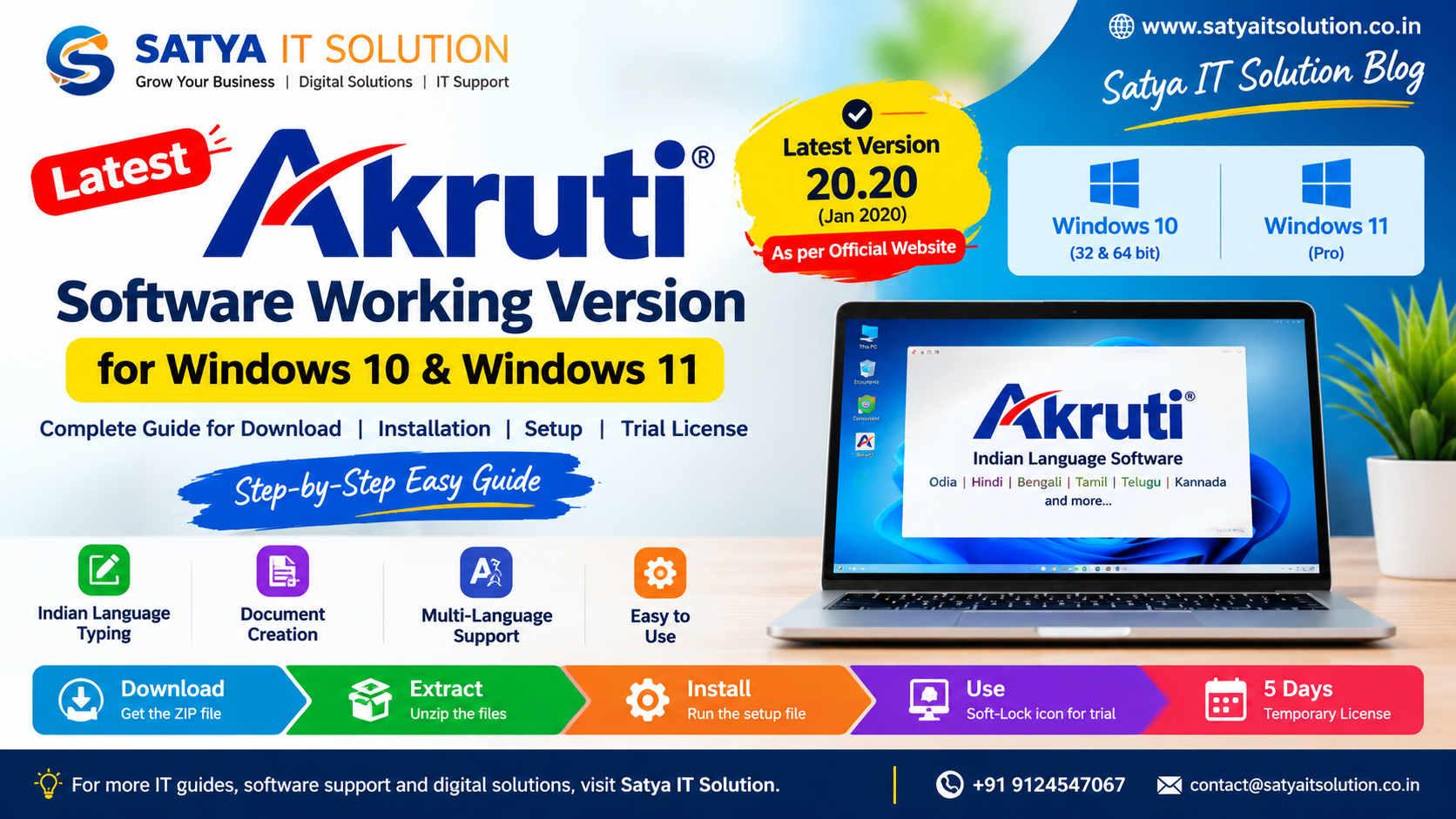
By Latest Akruti Software Working Version for Windows 10 & 11
Akruti Software Download and Installation Guide: Step-by-Step Setup with a 5-Day Trial License
Published by: Satya IT Solution
Are you looking for a step-by-step guide to download, install, and use Akruti software on your computer? Satya IT Solution provides this installation guide to help users understand how to install Akruti using the provided ZIP file and activate its temporary trial license for testing.
In this guide, you will learn how to extract the downloaded ZIP file, run the setup files, complete the installation process, and use the Soft-Lock desktop icon for trial purposes.
What Is Akruti Software?
Akruti is a software product associated with Indian-language typing and text input. Depending on the version, it may offer tools for typing and working with Indian-language text in supported applications.
It can be useful for users who need regional-language typing capabilities for office work, documentation, publishing, and other computer-based tasks.
Before installing the software, ensure that you have the correct installation package and that it is compatible with your computer.
How to Download Akruti Software
Follow these steps to access the Akruti installation package:
- Open the download link provided with your installation instructions.
- Download the ZIP file to your computer.
- Wait until the download is complete.
- Locate the downloaded ZIP file in your Downloads folder or the folder where you saved it.
- Check that the file has downloaded successfully before proceeding.
Important: Download software only from a trusted, authorized source. Make sure you have permission to install and use the software.
How to Install Akruti Software from a ZIP File
After downloading the ZIP file, follow the installation instructions below.
Step 1: Extract the ZIP File
Locate the downloaded ZIP file on your computer.
Right-click the file and select Extract All or use a trusted file extraction utility. Choose a suitable destination folder and extract the files.
Once extraction is complete, open the extracted folder to locate the Akruti setup files.
Step 2: Run the Setup Files
Open the extracted folder and identify the appropriate setup files.
Run the installer and follow the on-screen instructions to complete the installation.
If Windows requests administrator permission, verify that the installer comes from a trusted source before allowing it to proceed.
Step 3: Complete the Installation
Follow the installation wizard and wait for the setup process to finish.
Once installation is complete, check your computer’s desktop for the Akruti shortcuts.
According to the supplied installation instructions, the process creates two desktop icons.
Step 4: Identify the Desktop Icons
After installation, you should see two Akruti-related icons on your desktop.
Read the icon labels carefully before launching the software. According to the supplied instructions, the Soft-Lock icon is intended for trial usage.
Use the appropriate icon for the permitted trial mode and follow the software’s licensing instructions.
How to Use the Akruti 5-Day Temporary Trial License
The supplied installation instructions state that the temporary license works for five days.
This temporary license allows users to test the software during the specified trial period, subject to the applicable license terms.
To begin:
- Complete the software installation.
- Locate the Akruti desktop shortcuts.
- Open the Soft-Lock icon for trial usage.
- Follow any activation or licensing prompts displayed by the software.
- Test the features available under the temporary license.
Please note: Trial duration, activation requirements, and available features may depend on the software version and licensing terms. Confirm the exact conditions with the software provider.
When the trial period expires, obtain an authorized license if you wish to continue using the software.
Important Safety Tips Before Installing Akruti
Before installing any software on your computer, follow these precautions:
- Download the installation package from a trusted and authorized source.
- Scan the ZIP file and extracted installer using reputable security software.
- Verify the publisher and digital signature when available.
- Avoid running unknown executables or disabling antivirus protection to complete an installation.
- Keep a backup of important files before installing new software.
- Follow the software provider’s licensing terms.
- Do not use unauthorized activation tools or modified license files.
These precautions help protect your computer and data during software installation.
Common Akruti Installation Problems and Solutions
1. ZIP File Is Not Opening
If the ZIP file does not open, check whether the download is complete. If the file appears damaged, download a fresh copy from the authorized source.
2. Setup File Is Not Running
Check the system requirements and confirm that the installer is compatible with your version of Windows. Review any error message displayed during installation.
3. Desktop Icons Are Missing
Check whether the installation completed successfully. If necessary, reopen the installer instructions or consult the software provider.
4. Soft-Lock Trial Is Not Working
Verify that you are using the correct desktop shortcut and that the trial license has been configured properly. If an activation error appears, contact the authorized software provider.
5. The Five-Day Trial Has Expired
If the temporary license has expired, contact the software provider to obtain a valid license or learn about the available licensing options.
Frequently Asked Questions (FAQs)
Q1. How do I install Akruti software?
Download the provided ZIP file, extract its contents, run the appropriate setup files, and follow the installation wizard.
Q2. How long does the temporary Akruti license last?
According to the supplied installation instructions, the temporary license works for five days. Confirm the exact trial terms with the software provider.
Q3. Which Akruti desktop icon should I use for the trial?
The supplied instructions identify the Soft-Lock icon for trial usage.
Q4. Why are there two Akruti icons on my desktop?
The installation instructions indicate that two desktop icons are created. Check the labels and the documentation for your particular software version to understand their respective purposes.
Q5. Can I continue using Akruti after the trial expires?
Continued use depends on the applicable licensing terms. Contact the authorized software provider for a valid license or renewal options.
Q6. Is it safe to install Akruti from a ZIP file?
It can be safe if the package comes from a trusted, authorized source and has been checked for security risks. Avoid unknown downloads and unverified installers.
Conclusion
Installing Akruti software from a ZIP file involves downloading the installation package, extracting its contents, running the setup files, and selecting the appropriate desktop shortcut.
According to the supplied instructions, the Soft-Lock icon is used for trial purposes, and the temporary license works for five days.
Always verify the installation package and follow the software provider’s licensing requirements before using the application.
For more software installation guides, IT support information, digital solutions, and technology updates, visit Satya IT Solution.
Satya IT Solution
Website: https://www.satyaitsolution.co.in
Email: [email protected]
Phone/WhatsApp: +91 9124547067
Disclaimer: This article is an informational installation guide based on the instructions provided. Akruti software and its licensing are subject to the relevant provider’s terms. Satya IT Solution does not claim ownership of third-party software or authorize the distribution of unlicensed software.